Showing posts with label wsus. Show all posts

Monday, April 23, 2007

Using deadlines to install Windows updates on unattended servers

WSUS is a great tool to distribute and install Microsoft Updates. As long as the administrator approves the updates, an "Updates are ready" notification will pop up on each user's screen, and the users will be prompted to proceed with installing the updates.

But what about unattended servers? No-one ever logs into their consoles and thus there's nobody to install the updates. Having an administrator log in to each server to install updates is just too tedious. Luckily, this isn't necessary. Using deadlines, one can have the updates install on unattended servers automatically. Here's how I do it:

  1. I've created a computer group in WSUS called "Servers" and added all servers to it.
  2. Whenever I approve an update, I make a separate approval for the "Server" group with a deadline.
  3. When the deadline expires, updates are installed automatically.
A thing to note here is that most of the time a server will reboot after the updates are installed. You don't want your servers to reboot in the middle of the day. Therefore, set the deadline to off-hours.

Always set the deadline more than 22 hours in the future. This is because Automatic Updates service is checking for new updates by default every 22 hours. Imagine what happens if during the day, say at 12am you set the deadline for 11pm today. By 11pm a server may not have checked for new updates yet, and it will not know a new update with a deadline is available. Next day, say at 10am it will check, find the update and see that the deadline is already past due. It will then immediately install the update and reboot right when your users are busy using it. To avoid such unfortunate scenario, allow sufficient time for Automatic Updates to find the update before the deadline expires.

Friday, December 08, 2006

WSUS Deployment Issues

As mentioned in a previous post, I have deployed Windows Server Update Services (WSUS) in our company network. While overall the deployment went well, there were a number of issues with several computers, and overcoming them was a bit of a challenge. Most of the issues can be diagnosed by examining the WindowsUpdate.log file located in Windows directory. Here I'm going to share my experience.
  1. Some computers were running Windows 2000 with Service Pack 2. This version simply doesn't support automatic updates. The solution was to upgrade to Service Pack 4 manually.
  2. A common problem on both Windows XP and Windows 2000 computers was broken MS XML installation. This manifested in the following errors in WindowsUpdate.log:
    WARNING: GetConfig failure, error = 0x80244001, soap client error = 1,
      soap error code = 0, HTTP status code = 200
    WARNING: Sync of Updates: 0x80244001
    WARNING: Failed to synchronize, error = 0x80244001
    WARNING: Exit code = 0x80244001
    

    Error code 0x80244001, which means "SOAP client initialization failure", is indicative of MS XML installation problem. The solution is to reinstall MSXML 3.0 SP5 from here.

    Another manifestation of MS XML problem was the following in WindowsUpdate.log:

    WARNING: Sync of Updates: 0x80040111
    WARNING: Failed to synchronize, error = 0x80040111
    WARNING: CEventNamespaceDefinition::Init failed = 80040111.
    WARNING: InitReportingComponents failed: 80040111
    WARNING: Exit code = 0x80040111
    

    Error code 0x80040111, which means "ClassFactory cannot supply requested class", also most likely is caused by broken MS XML. The solution is the same.

  3. Even after MS XML reinstall, some computers failed to synchronize, displaying the following in the WindowsUpdate.log:
    WARNING: Sync of Updates: 0x80244010
    WARNING: Failed to synchronize, error = 0x80244010
    WARNING: Exit code = 0x80244010
    WARNING: WU client failed Searching for update with error 0x80244010
    

    Error code 0x80244010, which means "The maximum allowed number of round trips to the server was exceeded", in my experience can be dealt with as follows: either try again, or, if it occurs repeatedly, reset updates database. To reset the database, follow these steps:

    1. Stop automatic updates service (with "net stop wuauserv" command or in Services console)
    2. Delete or rename directory Windows\SoftwareDistribution
    3. Start automatic updates service (with "net start wuauserv" command or in Services console)
    4. Run "wuauclt /resetauthorization /detectnow" command

Thursday, October 05, 2006

Installing Windows Server Update services (WSUS)

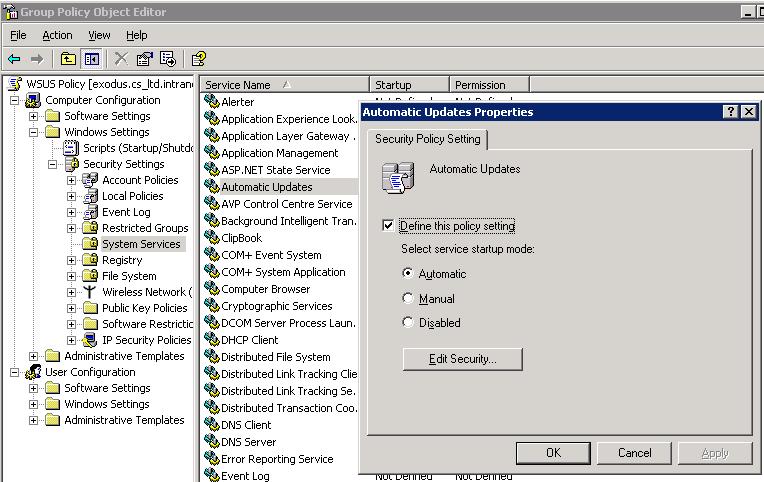
I've installed WSUS in my company's network. Right now it's being tested by a limited number of users, but things seem to run well. Installation and configuration is easy, and fully described in Deployment and Operations guides from Microsoft. A couple of things the guides didn't mention, though. First, I had to install this hotfix on the WSUS server computer, otherwise clients failed to update. Second, Automatic Updates (wuauserv) service as well as Background Intelligent Transfer Service (BITS) must be running on all client computers that update from a WSUS service. The former sounds obvious yet is easy to overlook, and BITS even less obvious for a new user of WSUS. An good way to ensure that the required services are running is through Group Policy. Since Microsoft recommends that WSUS settings are set in a separate GPO, and not in the Default Domain Policy, this WSUS GPO is a good place to configure Automatic Updates service to autostart (although one can do it in any other GPO as well). To do so, open this GPO in Group Policy Object Editor, and navigate to Computer Configuration - Windows Settings - Security Settings - System Services. Locate Automatic Updates services in the list, double-click and set the "Service startup mode" to automatic, like this:

Caveat: you also need to configure services security (the Security dialog pops up automatically). Here make sure to add "Authenticated Users" group with Read permission like this:

If you fail to do so, the Automatic Updates service will fail to start with "Error 0x80004015: The class is configured to run as a security id different from the caller". This is discussed in detail here. Repeat these steps for the Background Intelligent Transfer Service (BITS).

On a related note, in order to test WSUS with a limited number of computers I employed the following approach. As Microsoft guides recommend, I created a separate WSUS policy GPO with WSUS settings in Group Policy Management Console. I linked it to the top-level domain, but using the Security Filtering feature I specified that it only applies to a few selected computers. Once testing is successfully, I will replace this list of computers with "Authenticated Users" group so that the policy applies to all.